Tips for Aircasters

Direct an onAir Broadcast

Before you begin you will need to make sure the following software, hardware and settings are prepared on your system.

1-Run a System and browser update Updating your operating system and browser is critical. We recommend using Windows 7+ and Mac OS 10.9+. We found the most recent version ofChrometo give the best results.

2-Always restart your computer and then close any unwanted applications you will not be using before starting the broadcast.

3-If you will be sharing your screen for presentations or demonstrating an application please create a dedicated broadcast desktop. Here’s how: –Mac users:   Activate Mission Control by swiping up with three fingertips on your Mac’s trackpad, or tapping the Mission Control button (it’s sharing space on the F3 key) on your keyboard. Click the “+” in the top-right corner of the screen to add a new Mission Control desktop. -Win users: To add a virtual …

Focus: onAircast show title

When: online at anytime, anywhere

Director: Recommend two screen

Host: Could also be presenter

Panelists: Hangout participants … could be small or large group

See this post for more details ...

OnAir Post: Tips for Aircasters

How to participate in an onAircast

Participate in onAir Show

Members can participate in an onAir Show as long as they have been invited. As an invited Hangout participant, Members can ask questions, screen share, give and comment on presentations and panel discussions. Members can alternatively view only the onAir Broadcast by access1ing the Hub post or directly from the Hub’s YouTube Channel watch page.

OnAir broadcasts are live streamed videos of a presentation and/or discussion that are archived in a post and in the Hub’s YouTube channel. Members can participate in any onAir broadcast as a Hangout Participant as long as they have been invited by the broadcast’s Director. As a Hangout participant, Members can ask questions, screen share, give and comment on presentations and panel discussions.

Members can also request the Hub’s Curators to set up one or more onAir broadcasts for their post(s). Curator’s will schedule your event, place it in your post before your event and store the resulting archived video in the Hub’s YouTube channel. You can have ten different locations interacting in the Hangout that your direct.

How set up a laptop’s mic and webcam

1- Go to Google  Hangouts and then click the green visit hangouts.google.com button for the Chrome extension
(We recommend you use Chrome for your browser although Firefox, IE, and Safari will work).
2- Using Chrome you can click the navigation bar at the top left  screen-shot-2016-10-13-at-8-18-30-pm

3-Select Chrome from the drop down menu and then click add extension in the pop-up window.

With the Hangout extension installed you can now use your mic and webcam.

4- Click on invitation received in your email to go to the Hangout at the time requested prior to the start of the broadcast.

3- Here are some tips (slides 6 – 9) ….

Multi-task while in Hangout

Get Popout for YouTube™ Chrome Extension for a single window that floats over your other applications.

For more than one YouTube window, get the Floating for YouTube™ Extension and App.


onAircasts

Post authors can embed one or more onAir broadcast within their posts. These onAir broadcasts are configured using Google Hangouts, Hangouts On Air, and YouTube channels. There are three main types of onAir broadcasts authors can produce…

  1. Using laptops w/ built-in camera and mics – involves only individual Hangout participants and can be produced and moderated by one person from their laptop. Can be streamed to anyone on the web with a link and archived automatically in a post.
  2. Presentation and/or discussion around Table – requires at least one person dedicated to operating a camera and connecting to the Internet.  Can be streamed to anyone on the web with a link and archived automatically in a post
  3. Presenter and/or panel w/ audience –  requires at least one person dedicated to operating a camera and connecting to the Internet. If want higher quality capture, can use better camera(s), wireless lapel and table mics in a controlled setting like a studio. Can be streamed to anyone on the web with a link and archived automatically in a post. 
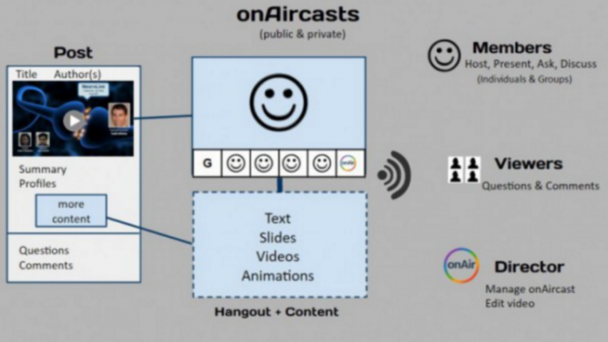
OnAir Post: How to participate in an onAircast

About Aircasts

Focus: onAircast show title

When: online at anytime, anywhere

Director: Recommend two screen

Host: Could also be presenter

Panelists: Hangout participants … could be small or large group

Aircast posts

See this post as one model and this post as another model for onAircast posts.

Preparation

Hardware and software can be as simple as using laptop webcams and built-in mics. (Group broadcasts like seminars and presos in front of an audience require additional tools and special spaces/studios).

Recording

For more details, see Author How-to.

Managing Shows

For more details, see Curating an onAircast.

Submitting an onAircast show request

Evaluating potential shows

Scheduling an onAircast

Directing an onAircast

See this post for more details on how to direct and edit an onAircast.

Design for 10′ onAircast below:

:00 to 0:20–  Opening… one slide …. fade in text… Title, Host, sponsor spoken w/ music

0:20 to 1:00–  Host introduces presenter

1:00 to 6:00–  Presentation … recorded or live with slides (3 to 5 minutes)

5:00 to 10:00 – Questions and Comments from panelists and Hub ...

OnAir Post: About Aircasts

Aircasters

Direct an onAir Broadcast

Before you begin you will need to make sure the following software, hardware and settings are prepared on your system.

1-Run a System and browser update Updating your operating system and browser is critical. We recommend using Windows 7+ and Mac OS 10.9+. We found the most recent version of Chrometo give the best results.

2-Always restart your computer and then close any unwanted applications you will not be using before starting the broadcast.

3-If you will be sharing your screen for presentations or demonstrating an application please create a dedicated broadcast desktop. Here’s how: –Mac users:   Activate Mission Control by swiping up with three fingertips on your Mac’s trackpad, or tapping the Mission Control button (it’s sharing space on the F3 key) on your keyboard. Click the “+” in the top-right corner of the screen to add a new Mission Control desktop. -Win users: To add a virtual …

Edit a Broadcast Add a Group to an onAircast

OnAir Post: Aircasters

Skip to toolbar